





What you need before you start
This guide covers Ordder POS, the system that runs the till, QR ordering, the kitchen display and the back office. Ordder POS runs in the browser at app.ordder.com, so there is nothing to install for the back office. Have these ready and setup goes in one sitting.
- A computer or tablet with a current browser, for the back office and the till.
- Your menu: categories, items and prices, plus extras, allergens and photos if you have them. A short menu is enough to start.
- Your floor: the floors or areas you serve (inside, terrace, bar) and the tables in each.
- A screen for the kitchen: any tablet or display with a browser runs the kitchen display. Add thermal printers if your kitchen works from paper tickets.
- Your payment setup: the online payment provider you want for pay at table, and the card terminal you use at the till, if any.
- In Greece: your business details for AADE myDATA, so receipts and invoices can be issued as fiscal documents.
Set up Ordder in nine steps
Step 1 of 9
Start the free trial and choose a plan
Create your account at onboarding.ordder.com. Every plan starts with a 30-day free trial. See what each plan includes on the plans page, and talk to us for a price that fits your venue.
- Starter covers up to 15 tables, 2 floors, 5 staff accounts and 500 orders a month.
- Professional adds inventory, delivery and pickup, reservations, the AI Waiter, staff shifts and fiscal receipts.
- Enterprise adds recipes, multi-location, custom permissions, API access and the AI phone waiter.
Step 2 of 9
Add your venue details
Enter the venue name, address, currency and tax rates. These appear on the guest menu, on receipts and in your reports, so set them before you build the menu.
Step 3 of 9
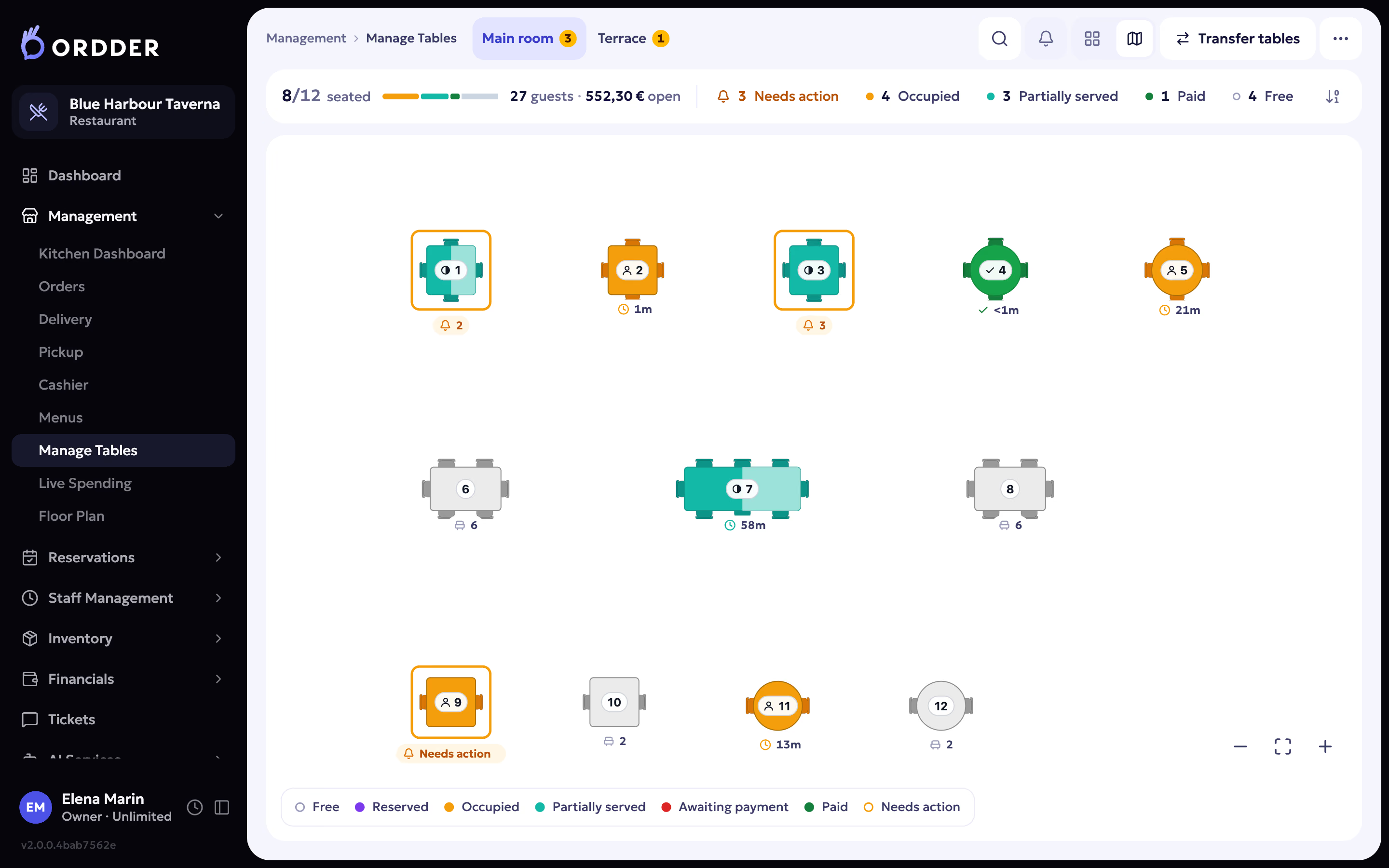
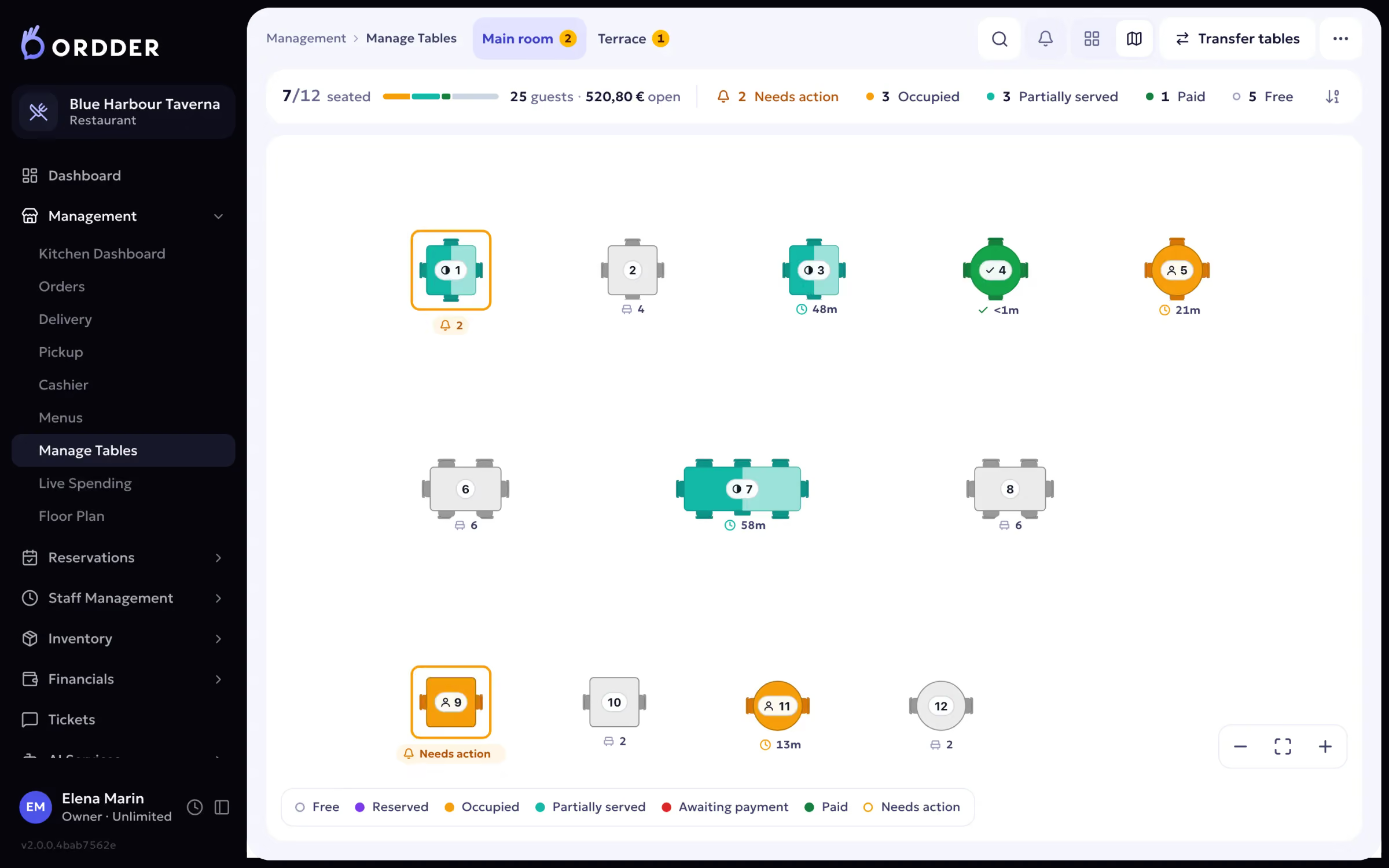
Draw your floor
Create a floor for each area and add the tables, in ranges if you have many. Draw walls and place decor so the plan looks like the room. Bar stools and sunbeds are table types too. Each table gets its own QR code, which is how guest orders reach the right table.
- On the live floor every table shows one of six states: free, reserved, occupied, partially served, awaiting payment or paid.
- You can renumber, move and add tables at any time.
Your drawn floor. Step 4 of 9
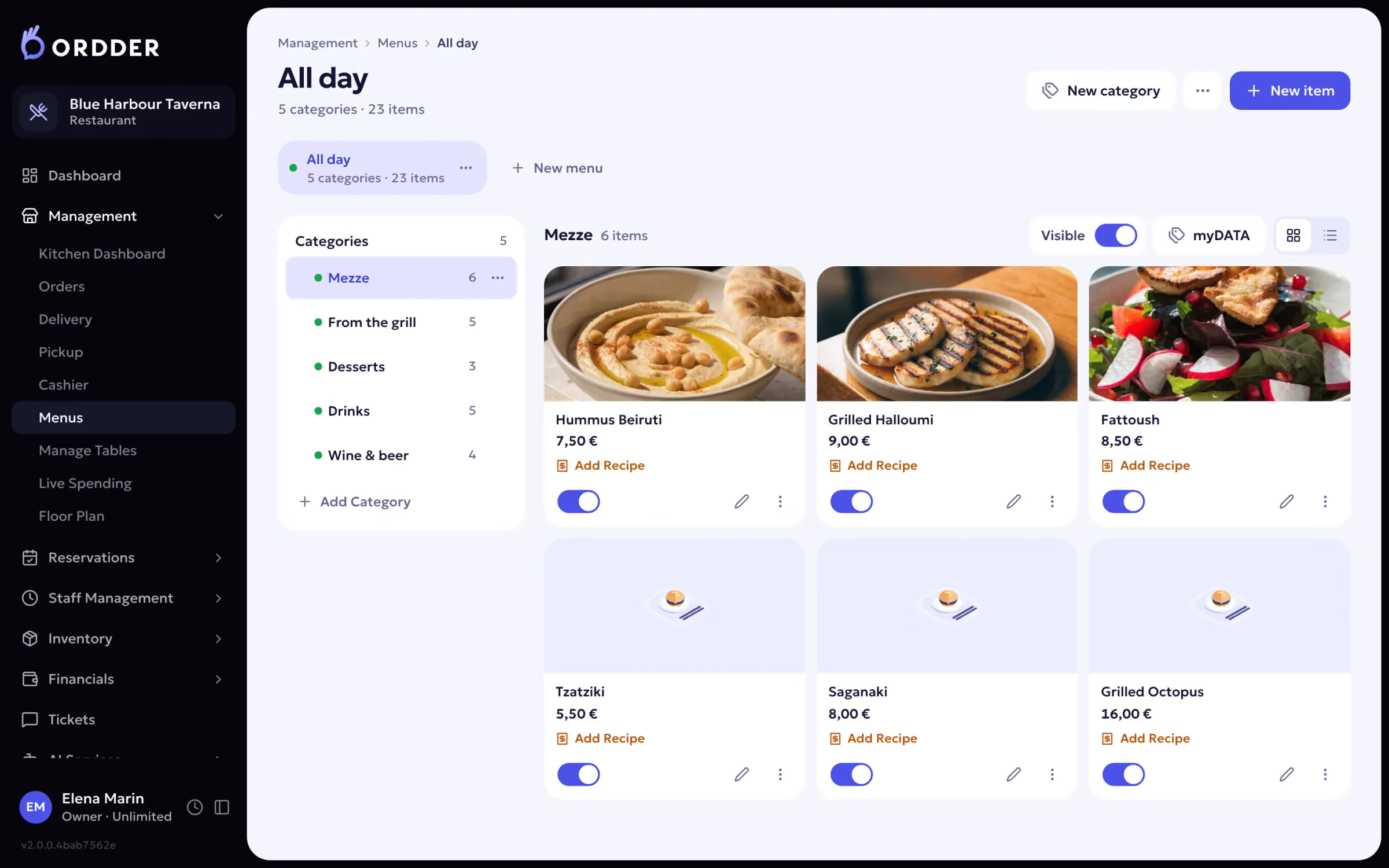
Build the menu
Add categories, then items with prices, descriptions, extras and allergens. Set a price per sales channel if dine in, delivery and pickup cost different amounts. If you already have the menu in a file, use the menu import.
- The guest menu is translated automatically, so guests can read it in their own language. It works in 23 languages.
- No photos yet? On Professional and Enterprise, AI can create dish photos or improve the ones you took.
Menus and categories. Step 5 of 9
Print the table QR codes
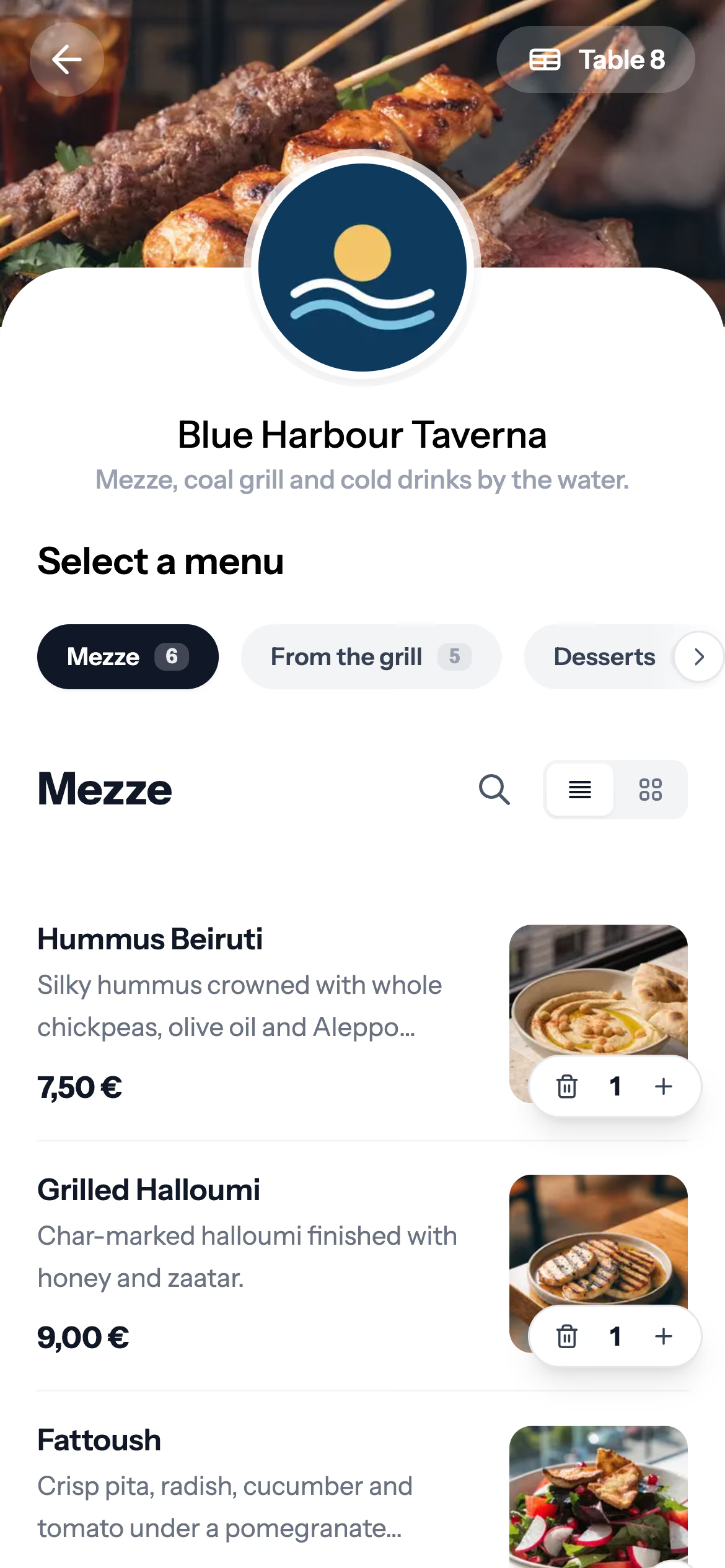
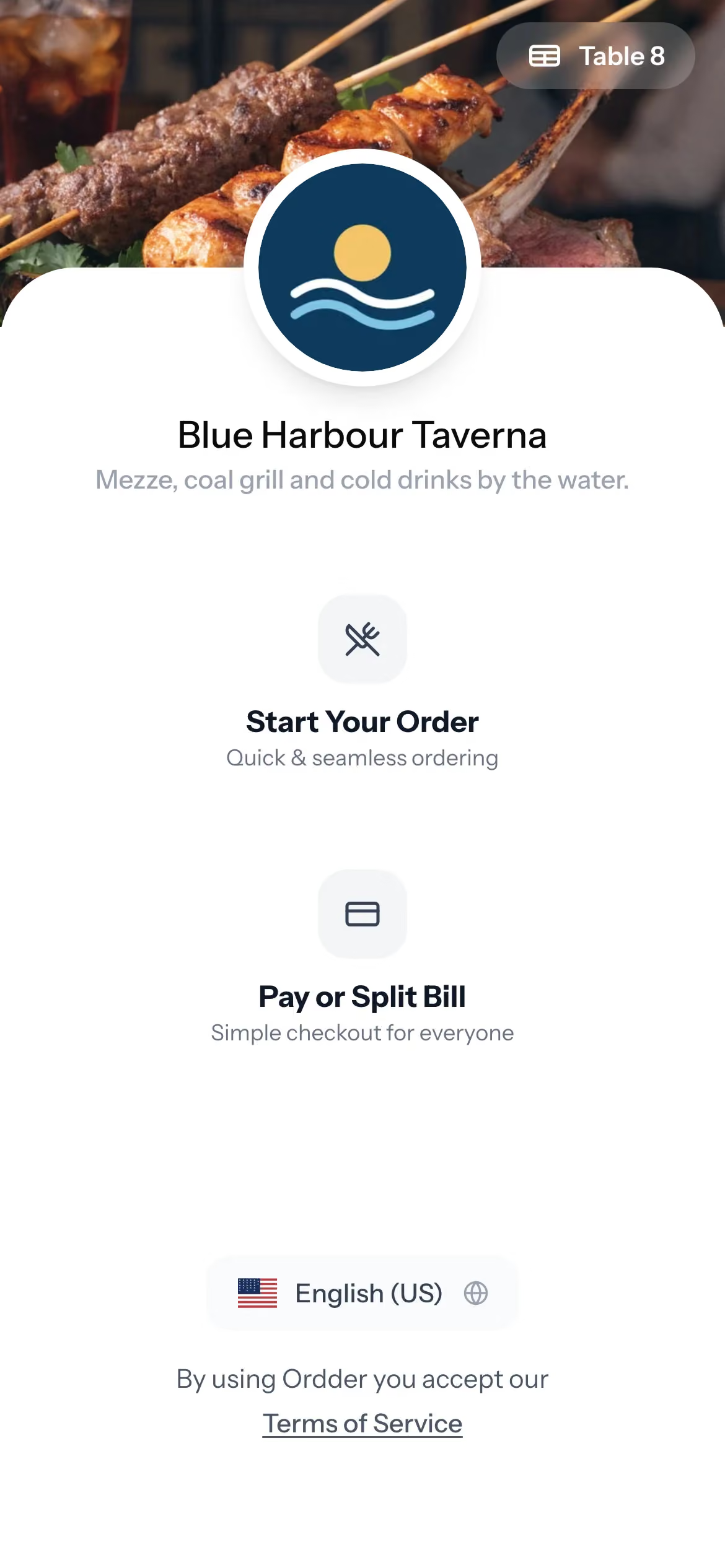
Design the table cards in the QR designer and print them. A guest who scans lands on your venue page: dine in, browse the menu, pay or split the bill, call a waiter, or ask the AI Waiter on Professional and above. No app to download.
- Test one card per area before you print the whole set.
Each table's QR opens its own menu. Step 6 of 9
Set up the kitchen
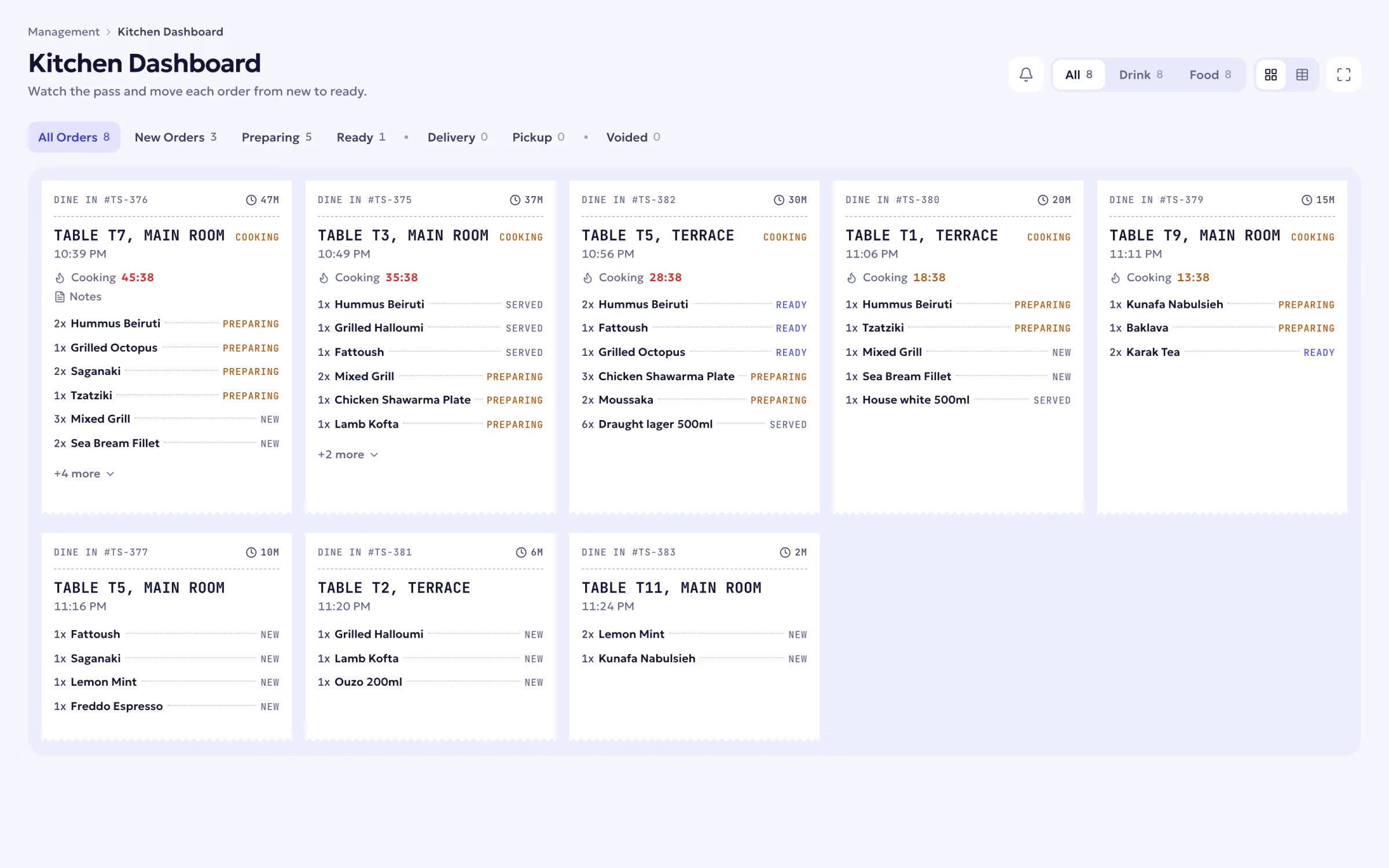
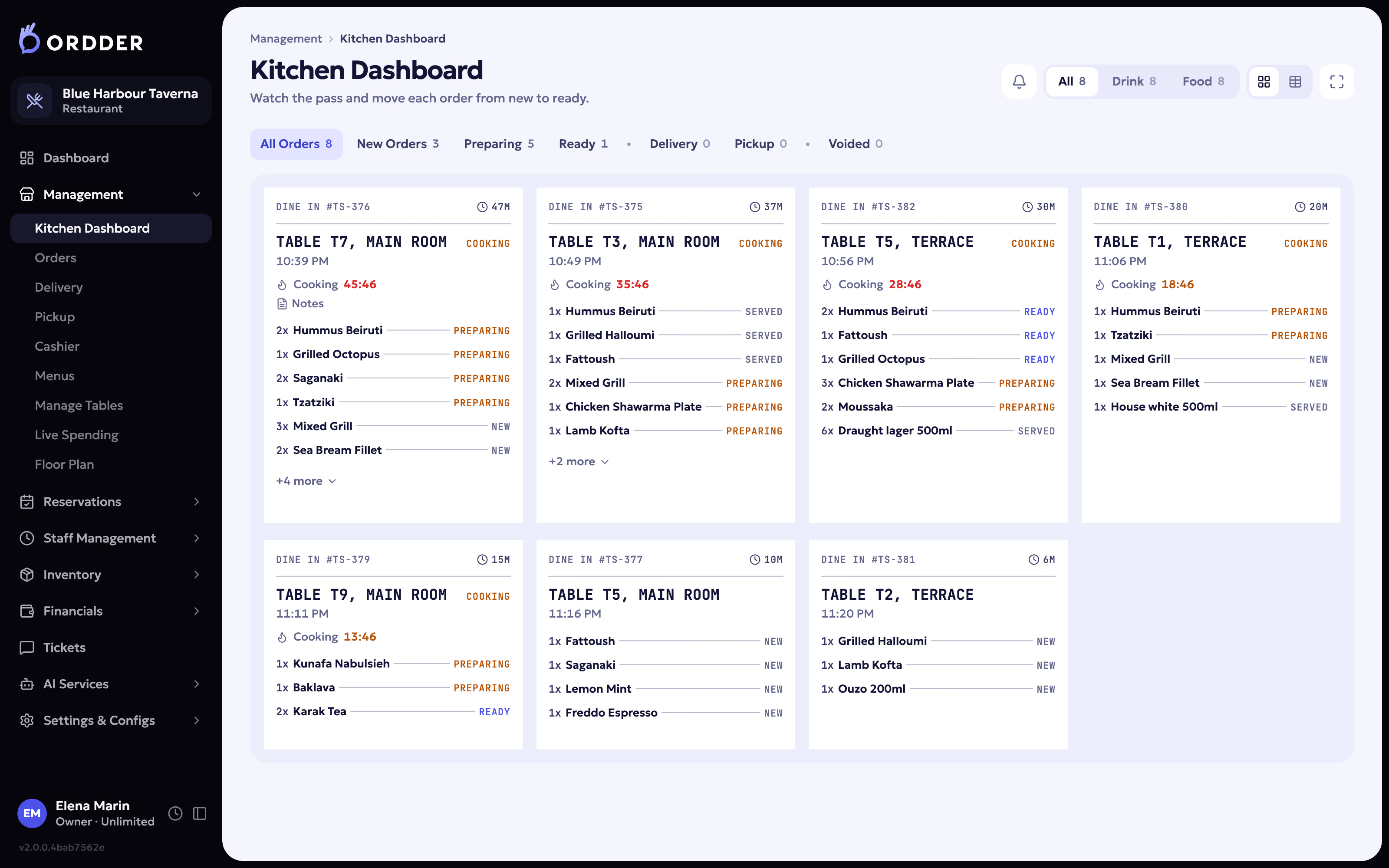
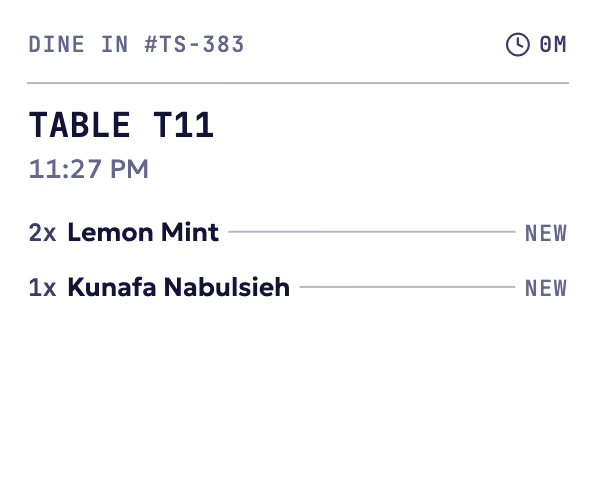
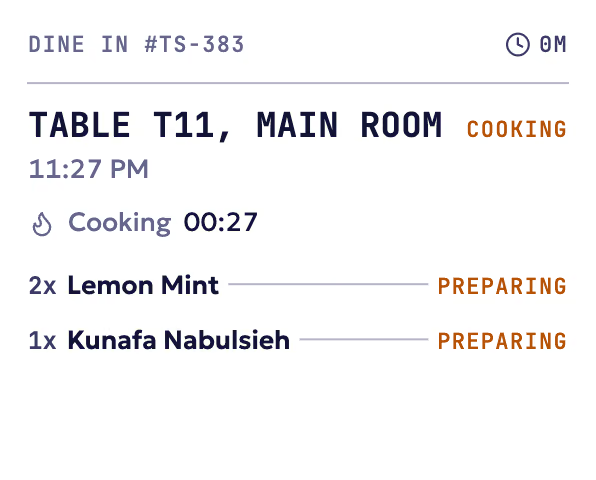
Open the kitchen display on the kitchen screen and sign in. New orders appear the moment they are sent, from the table or from the till, and move from New to Preparing to Ready with a live cooking timer. To print tickets, pair your printers through the Ordder print bridge on a Windows PC or the Raspberry Pi bundle.
- Pair devices such as order terminals and waiter phones with a pairing code from the Devices page.
The kitchen display. Step 7 of 9
Connect payments
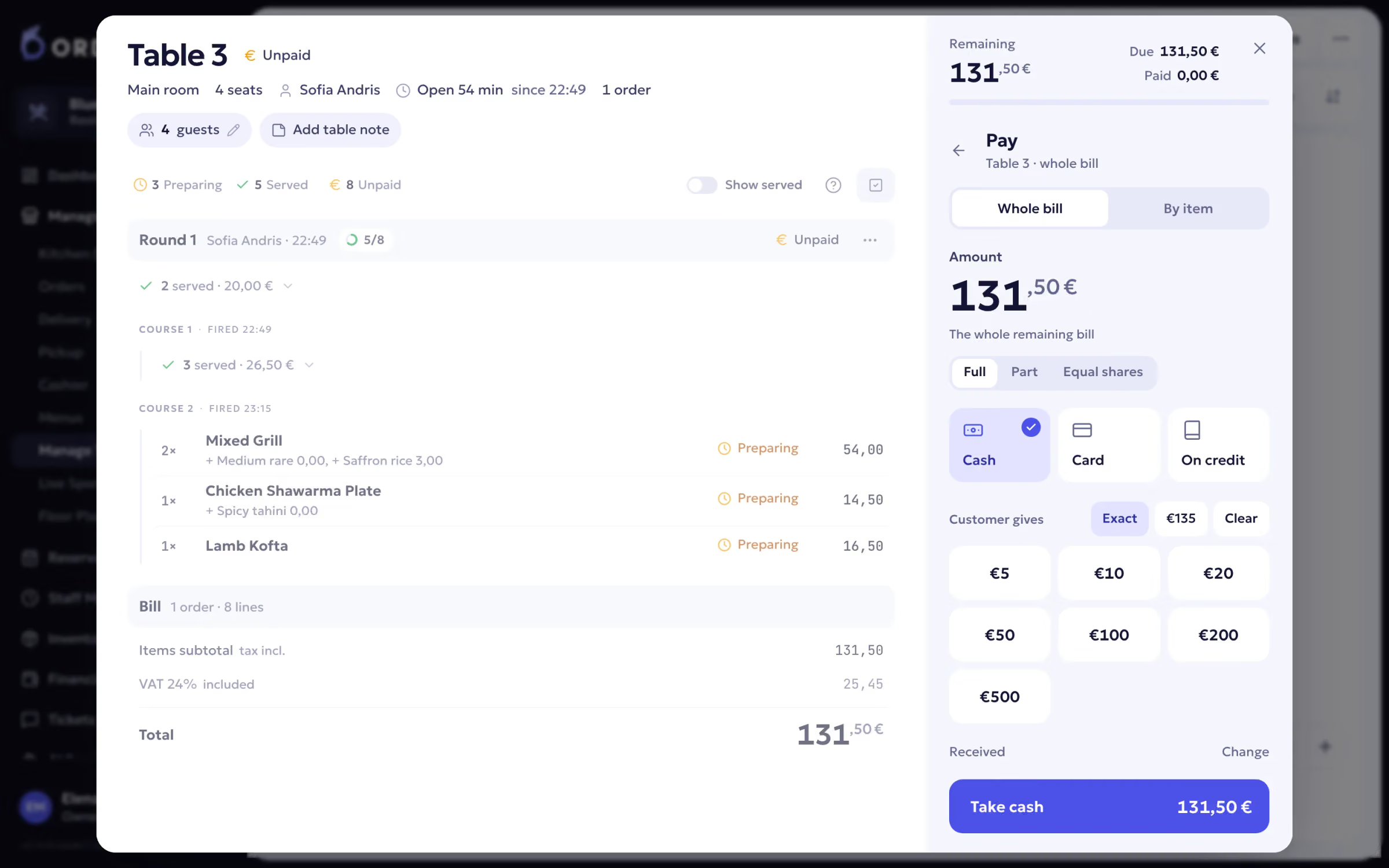
Connect your online payment provider so guests can pay from the table, split the bill and add a tip. Then connect your card terminal: Ordder POS works with terminals from Viva, Mellon and Nexi, Seerbit and eTameiaki. Tips are recorded on their own and never enter fiscal totals.
- In Greece, receipts, invoices and credit notes are sent to AADE myDATA, and the guest's receipt carries the fiscal QR code.
The bill and the payment. Step 8 of 9
Add your team
Invite staff and give each person a role: manager, host, waiter, cashier, kitchen or accountant, among others. Floor and kitchen staff sign in with a personal PIN, and each role opens on the screen it needs. Enterprise lets you build custom permissions.
- Training mode is switched on per venue: ask us and we turn it on. A manager then starts a training session, and new staff ring up practice orders that never count as revenue and never reach the tax authority.
Step 9 of 9
Run a test service, then open
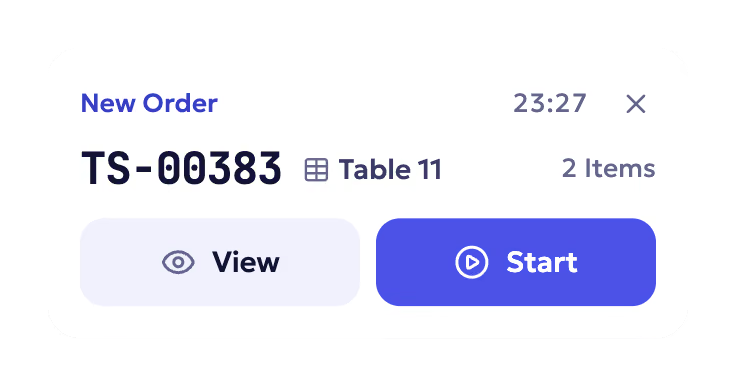
Scan a table card with your own phone and place an order. Check that it reaches the kitchen display, mark it ready and served, then pay it from the phone. Ring up a second order at the till and settle it on the card terminal. Finish with an X report to see the day so far. When the numbers look right, you are ready for guests.
A test order, then the ticket.


Your first week on Ordder
Most of the work after opening is small adjustments. A few habits help in the first days.
- 86 items from the menu as they run out, so guests cannot order them from the table.
- Watch the live floor during service. Tables that need someone stand out; the rest stay quiet.
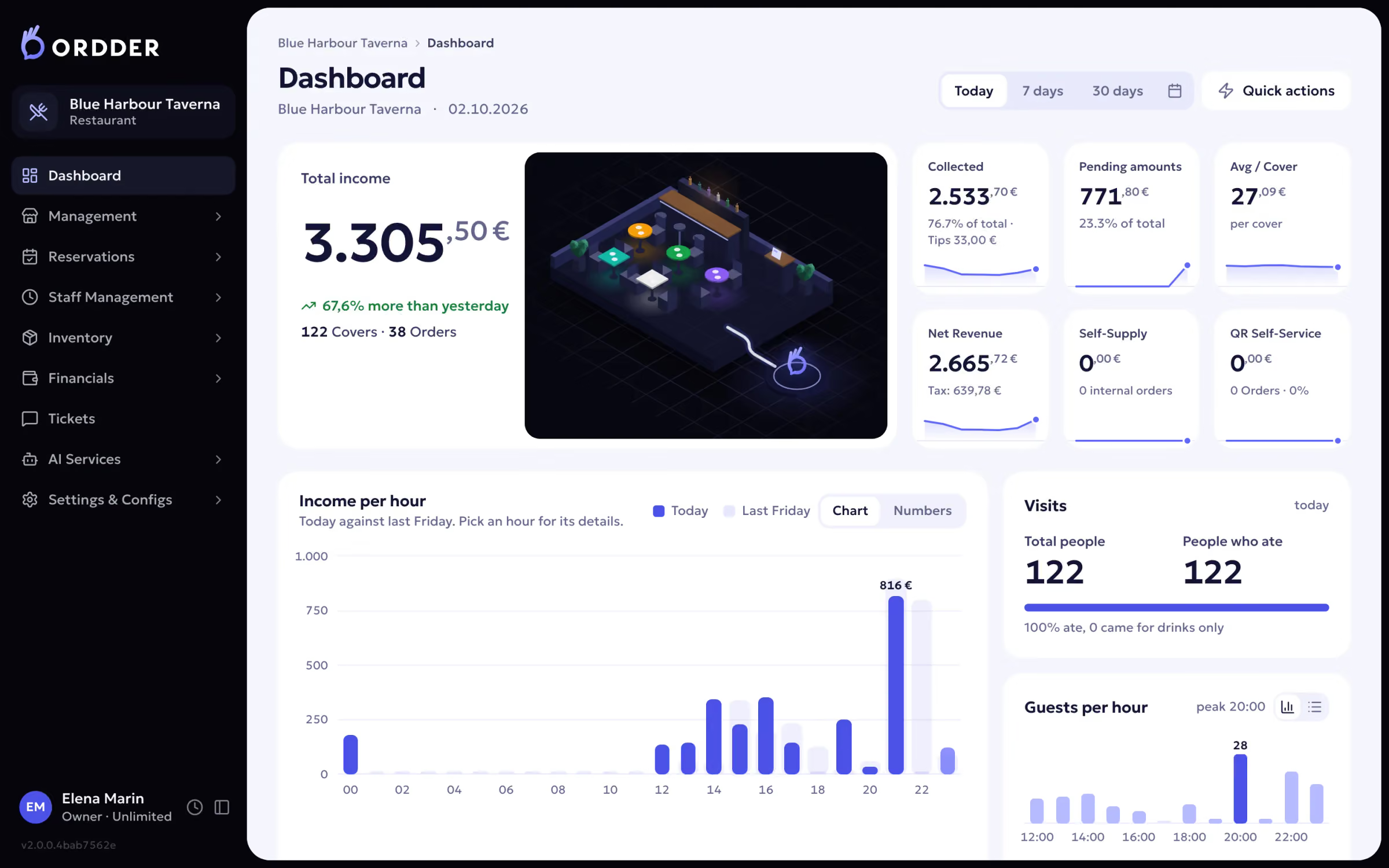
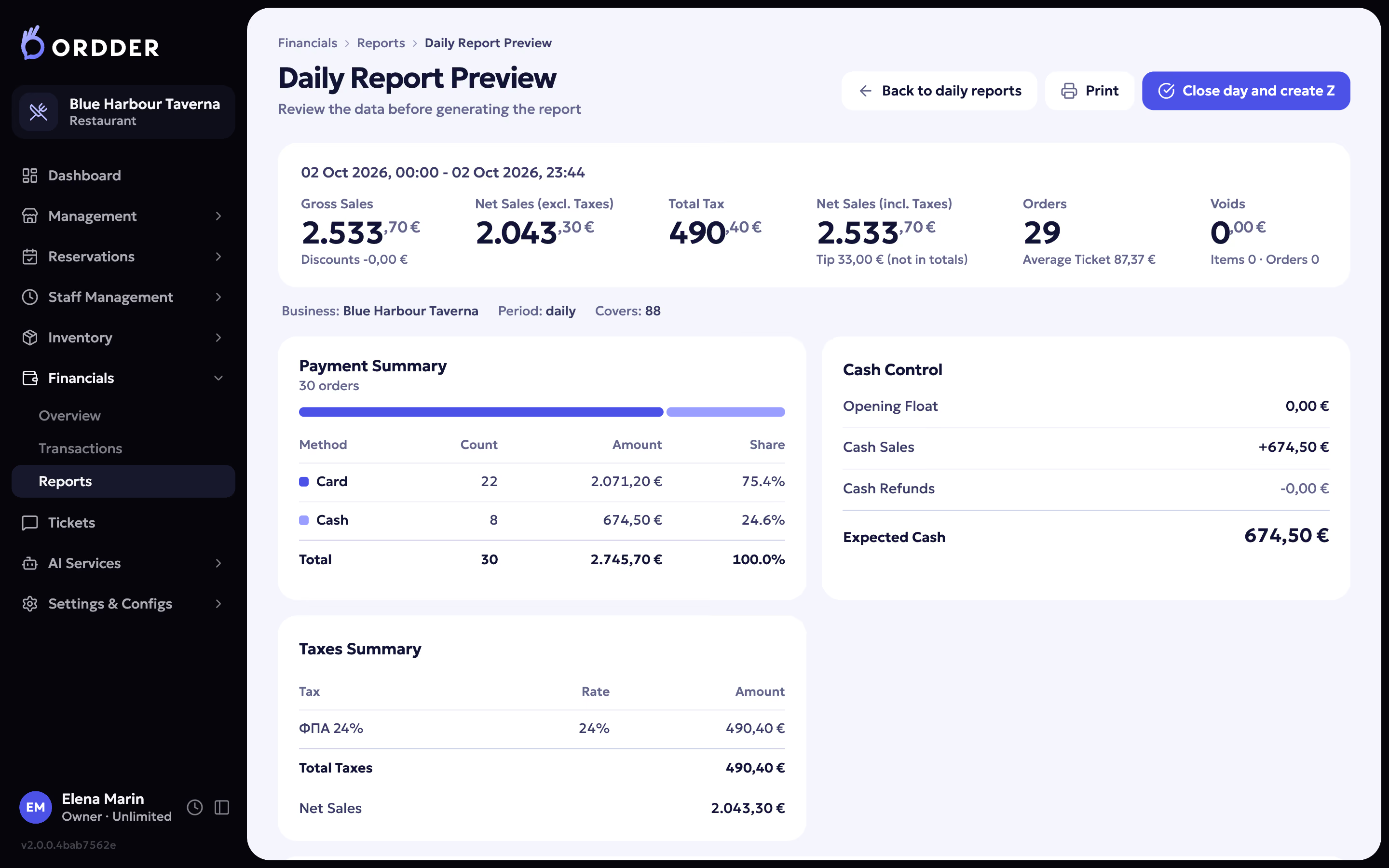
- Close each day with the end of day and the Z report, and check the financials the next morning.
- Read the reports after the first weekend: what sold, at which hours, and on which channel.
When you are ready to grow, add delivery and pickup, reservations with a host stand and waitlist, or inventory with purchase orders and stock alerts. They are part of the same system, so there is nothing new to connect.


If something does not work
- A QR code opens the wrong table
- Each card belongs to one table. Reprint the card from that table in the QR designer and replace the old one.
- Orders do not reach the kitchen
- Check that the kitchen screen is signed in to the right venue and is online. Reload the kitchen display page once the connection is back.
- A printer stays silent
- Make sure the PC running the print bridge is switched on and the printer is on the same network, then send a test print from Ordder.
- Guests cannot pay from the table
- Pay at table appears once your online payment provider is connected and active. Check its status in the payment settings.
- You need to change the menu or the floor
- Change it in the back office at any time. Guests see the new menu the next time the page loads.
Still stuck? Open a support ticket from the back office, or write to [email protected].